











An 888bet account gives you access to sports betting, casino games and crash titles available on the platform in Tanzania. Once registered, you can deposit funds, place bets, request withdrawals and review activity from one personal dashboard. This guide explains how to create an account, log in on different devices, reset a forgotten password, complete identity checks and deal with common access problems.
All features described below require you to be 18+ and located in Tanzania. Most actions work on a phone browser as well as on an Android app, although the exact screen layout may change after an update.
Creating a New 888bet Account
Registration is free. You will need a Tanzanian mobile phone number and a reliable network connection because the account confirmation process uses SMS. Have the phone nearby before starting, and check that its inbox can receive new messages.
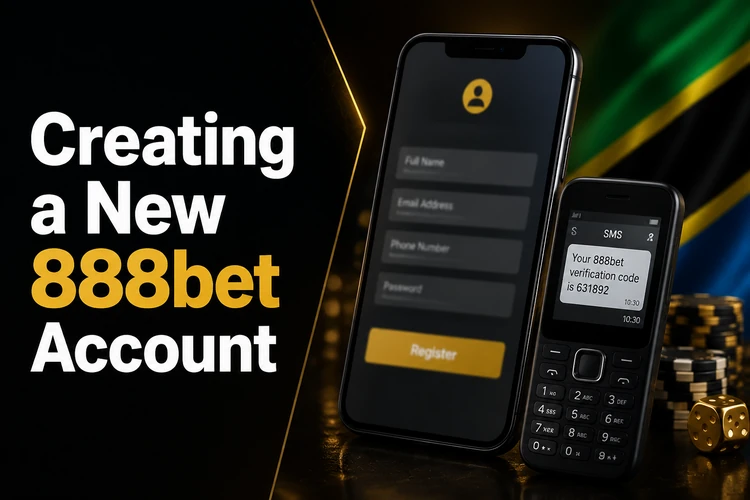
Follow these steps to register:
- Step 1: Open the 888bet website in a phone or computer browser.
- Step 2: Select the registration button on the home page.
- Step 3: Enter your Tanzanian mobile number in the requested field.
- Step 4: Create a password of at least eight characters using a mixture of letters and numbers. Do not use your phone number or date of birth.
- Step 5: Submit the form and wait for the SMS verification code.
- Step 6: Enter the code on screen to confirm the number and activate the account.
After registration, you should reach the account dashboard. Before depositing, check that the displayed phone number and personal details are correct. The same credentials work on the website and the Android app, so a second registration is not necessary.
How to Log In to Your Account
Returning users can sign in from a browser by opening the 888bet website and locating the login area at the top of the page. Enter the mobile number used during registration, type the password and select the login button. When the details are correct, the dashboard should show your balance, open bets and recent account activity.
On a phone browser, the mobile version adjusts to the smaller screen. If the country code is already displayed, enter only the remaining digits of the number. Avoid adding the code twice, as this can make an otherwise correct number appear invalid.
If you keep a session active on a private device, it may remain open until you log out. Always sign out after using a shared computer or another person's phone. Do not save the password in a public browser.
Login Using the Mobile App
The Android app uses the same account credentials as the website. Open the installed app, enter your phone number and password, and complete any security prompt shown on screen. Your balance and betting history are connected to the same account rather than stored separately on the device.
The app can be convenient on slower mobile connections because its interface is designed for a phone. Notifications may also show results or settled bets, depending on the permissions enabled on the device. These alerts should not replace checking the account directly before taking action.
Keep the app and Android system updated. If the app stops responding, close it completely, reopen it and check for an available update. Avoid installing files from unofficial sources, since modified applications can expose login details.
Password Reset Guide
If you forget your password, use the recovery option on the login screen. The reset normally depends on access to the mobile number linked to the account.
- Step 1: Select the link labelled «Forgot password?».
- Step 2: Enter the registered mobile number.
- Step 3: Wait for the one-time code sent by SMS.
- Step 4: Enter the code in the verification field.
- Step 5: Choose and confirm a new password.
If the message does not arrive, check network reception, confirm that the number is correct and make sure the message inbox is not full. Requesting several codes in quick succession can make it difficult to know which code is current, so wait briefly before trying again. If you no longer have the number, contact support and be ready to answer account-security questions.
Account Verification
The platform may request identity verification before a withdrawal or when account details need additional confirmation. This is a routine security step intended to confirm that the account belongs to the person using it.
Documents may include a government-issued national ID card, passport or driving licence, depending on the request. Upload a clear, well-lit image with all four corners visible and details readable. Do not edit the document or cover information that the verification team needs. Cropped, blurred or mismatched documents can cause delays. Only submit documents through the account's secure verification process, not through an unknown message or unofficial contact.
Accessing Aviator After Login
Aviator uses the same account rather than requiring separate credentials. After signing in, open the Aviator section from the available menu or game lobby. The wallet used for the game is connected to the main account, so review the available balance before starting a round.
Aviator can also be opened on a mobile device. A stable connection is especially useful because rounds are short and the game interface needs to update quickly. If the connection drops, do not repeatedly tap the bet control; first check the account history and transaction status.
Common Login Issues
Most access problems have a simple cause. Use the table below to identify the likely issue before contacting support.
| Problem | Likely cause | Solution |
|---|---|---|
| Wrong password error | Typing error or caps lock | Re-enter it carefully or start a password reset |
| SMS code not received | Weak network or full inbox | Check reception, wait briefly and request another code |
| Account locked | Several failed attempts | Wait 15-30 minutes, then contact support if needed |
| App login fails | Outdated app | Update the app and restart the device |
| Page does not load | Connection or browser problem | Try mobile data, Wi-Fi or another current browser |
| Session ends quickly | Cookies are cleared | Review browser privacy settings on a private device |
| Number not recognised | Wrong format or unregistered number | Check the digits and country-code format |
| Blank screen | Cache or JavaScript issue | Clear the cache, enable JavaScript and reload |
| Verification fails | Unclear or mismatched document | Submit a sharp, complete document that matches the account |
| Balance appears incorrect | Delayed connection or unsettled activity | Refresh the dashboard and review transaction history |
If these steps do not solve the problem, use the contact page. Give support the registered phone number and a short description of the error, but never send your password or a full payment PIN.
Tips for Secure Account Access
Use a password that is unique to this account. A longer combination of upper- and lowercase letters, numbers and symbols is preferable to a short predictable word. Do not reuse it on social media, email or payment services.
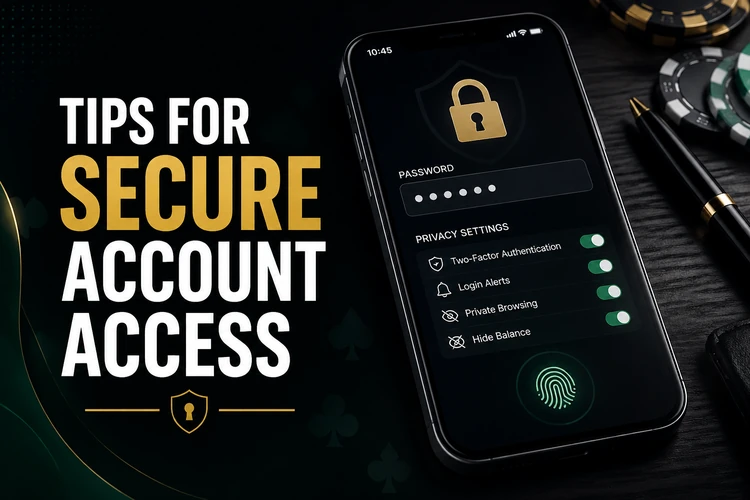
Protect the phone with a PIN, fingerprint or other screen lock. Never share login credentials with someone claiming to be staff, and be cautious of messages asking for a password, one-time code or payment details. Official support should not need your password.
Log out on a friend's phone or public computer, remove saved credentials from shared browsers and keep the operating system updated. If you suspect that someone has accessed the account, change the password from a trusted device and contact support promptly.
Betting should remain within limits you can afford. The responsible gambling guidance explains practical ways to monitor activity and stay in control.
FAQ
Open the website or app, select registration, enter your Tanzanian mobile number, create a password and confirm the SMS code. Check the account details before making a deposit.
Yes. Use the mobile number linked to the account together with the password on the website or Android app.
Select «Forgot password?» on the login screen, enter the registered number and follow the SMS instructions. If the code does not arrive, check the signal and try again later.
No. Aviator uses the same account and connected wallet. Log in normally, then open the Aviator section.
Yes. The credentials can be used on a phone browser, desktop browser or Android app. Sign out on devices you no longer use and avoid saving the password on shared equipment.
Wait 15 to 30 minutes after repeated failed attempts and try again carefully. If access remains blocked, contact support with the registered phone number, but do not disclose the password.